Set up the BAI Dashboard to preview BAI files before adding them to workflows.
Data Source
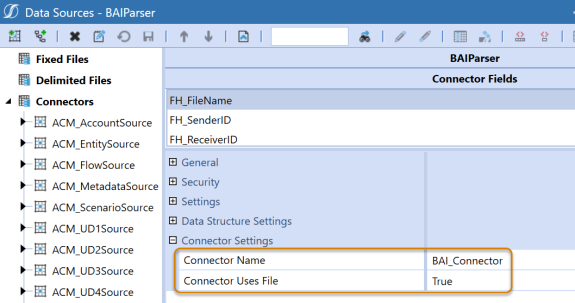
BAI Parser Solution uses a Connector Data Source. Navigate to Application > Data Collection > Data Sources to set up the source.
-
Select or create a data source.
-
Under Connector Settings, set Connector Name to BAI_Connector.
-
In the Connector Uses File drop-down menu, select True.
-
Click the Save icon.
-
Set the Data Type for Scenario and click the Save icon.
-
Set the Data Type for Time and click the Save icon.
-
Select Amount > Connector Settings.
-
Set the Source Field Name to a Connector Field such as AH_Amount and click the Save icon.
NOTE: Scenario, Time, and Amount must be configured. All other settings are optional.
Workflow Setup
Finalize workflow setup by navigating to Application > Workflow > Workflow Profiles.
-
Select or create a workflow profile to be used with BAI files.
-
Click Import.
-
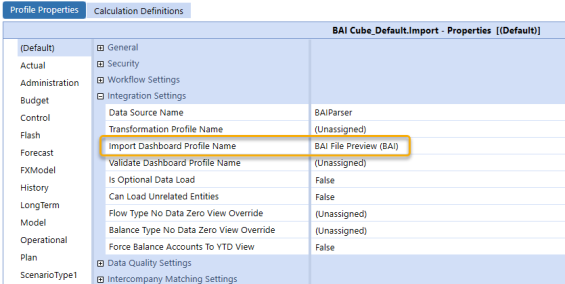
In the Profile Properties tab expand Integration Settings.
-
Set Data Source Name to the name of the data source you created.
-
Set Import Dashboard Profile Name to BAI File Preview (BAI).
-
Click the Save icon.
NOTE: Using the BAI Dashboard Preview is optional. Use Load and Transform to import BAI files without using the BAI dashboard.


